IPTV buffering: causes and checks that actually help
Why live streams pause or drop quality, how to tell whether the cause is your network, your device or the stream, and the checks to make in order.
By the Kemo IPTV team. Updated
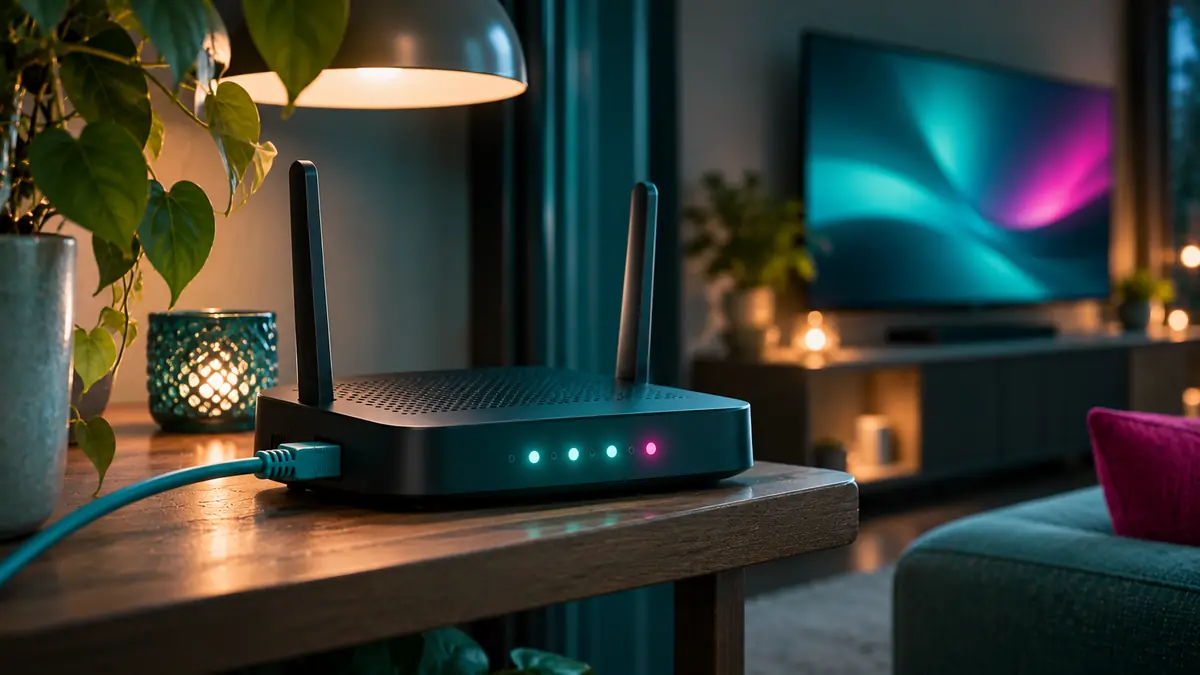
Buffering happens when video arrives more slowly than it plays. The app pauses to collect more data, or drops to a lower picture quality to keep going. Live TV is less forgiving than on-demand video, because the app can't download far ahead of what is being broadcast.
The fix depends on where the slowdown happens: your home network, your device, or the stream itself. Working through the checks below in order usually tells you which.
First, narrow it down
Ask three quick questions:
- Is it one channel or everything? One channel buffering while others play smoothly points to that stream. Everything buffering points to your network or device.
- Is it one device or all of them? If the TV buffers but a phone on the same Wi-Fi is fine, look at the TV, its app or its position relative to the router.
- Is it only at certain times? Problems every evening suggest a busy home network or internet connection at peak hours.
Network checks
- Use a cable where you can. An Ethernet cable from router to TV or box removes most Wi-Fi problems at once.
- Move closer to the router, or remove obstacles. Thick walls, floors, mirrors and fish tanks all weaken Wi-Fi.
- Use the 5 GHz band if your router offers it and the device is reasonably close; 2.4 GHz reaches further but is often more crowded.
- Pause heavy downloads. Game updates, cloud backups and large uploads on other devices compete for the same connection.
- Restart the router. Turn it off for 30 seconds, then on again, and give it a few minutes to reconnect.
- Run a speed test on the same device, at the time the buffering happens. What matters is a consistent speed, not a single high reading.
Device and app checks
- Restart the device fully, not just the app. Many TVs and sticks only sleep when you press the power button.
- Clear the app's cache if your device allows it, or reinstall the app if problems persist.
- Keep the app and device updated.
- Free up storage and memory on low-powered streaming sticks by closing other apps.
- Try a different player setting such as the decoder or buffer size, if your app offers them. Change one thing at a time so you know what helped.
When it's the stream
If one particular channel buffers on every device and network while others play normally, the problem is likely with that stream. Try again a little later, and if it continues, let us know which channel, roughly what time, and which device and app you use.
A note on VPNs
A VPN adds an extra step between you and the stream. If you use one and see buffering, test without it to see whether it is the cause.
Still buffering?
Work through the troubleshooting checklist, then message us on WhatsApp with the results. Telling us what you have already tried saves time for both of us. If you're testing before you subscribe, that is exactly what the 24-hour free trial is for: checking performance on your own connection first.